Day 1
- Core overview
- Basic insights
- Initial metrics and trend cards right away if Health history exists
 VitalStackFit
See how your week is going, why it changed, and what to do next.
VitalStackFit turns Apple Health data into a weekly wellness view you can actually use. Start with Overview, check what changed in Insights, and review your weekly direction instead of reacting to one rough day.
If you're new, this is what good setup looks like.
If Apple Health already has historical data, VitalStackFit can generate initial metrics and trend cards right away after permissions are granted.
For quickest value, prioritize:
Optional but useful:
Tip: don't react to one day. Review 7-day direction.
Daily Check-In saves only your latest check-in for that calendar day.
VitalStackFit can use Apple Health data such as:
Apple Watch is optional.
If you use Apple Watch, your trend depth is usually better.
If a metric has limited history, you may see “Not enough data” until more samples are available.
All core scores are trend signals, not medical measurements.
How restored your recent pattern looks (sleep + related recovery signals).
How stable your focus-supporting pattern looks across your recent days.
How balanced your recent strain pattern appears over time.
How regularly you sustain your routine and follow-through behavior.
A combined daily summary of your current trend state.
The single most important thing the app wants you to notice right now.
A quick snapshot of the four main parts of your weekly pattern.
Shows whether your readiness is moving up, down, or staying roughly steady over recent weeks.
A quick self-report that helps the app personalize your trend view over time.
For each calendar day, VitalStackFit stores the latest self check-in entry.
Highlights timing windows and repeated behaviors so you can spot when your days are calmer, louder, higher-effort, or lower-effort:
Summarizes what changed this week and which signals likely drove that change.
Shows 30/90-day movement so you can see bigger shifts, not just short-term noise.
Flags possible downside or upside windows based on your recent direction.
Run controlled habit experiments and measure whether they actually move the needle for your trend.
Brag Cards V3 are premium, social-ready visuals that automatically adapt to the story your real weekly trend is telling.
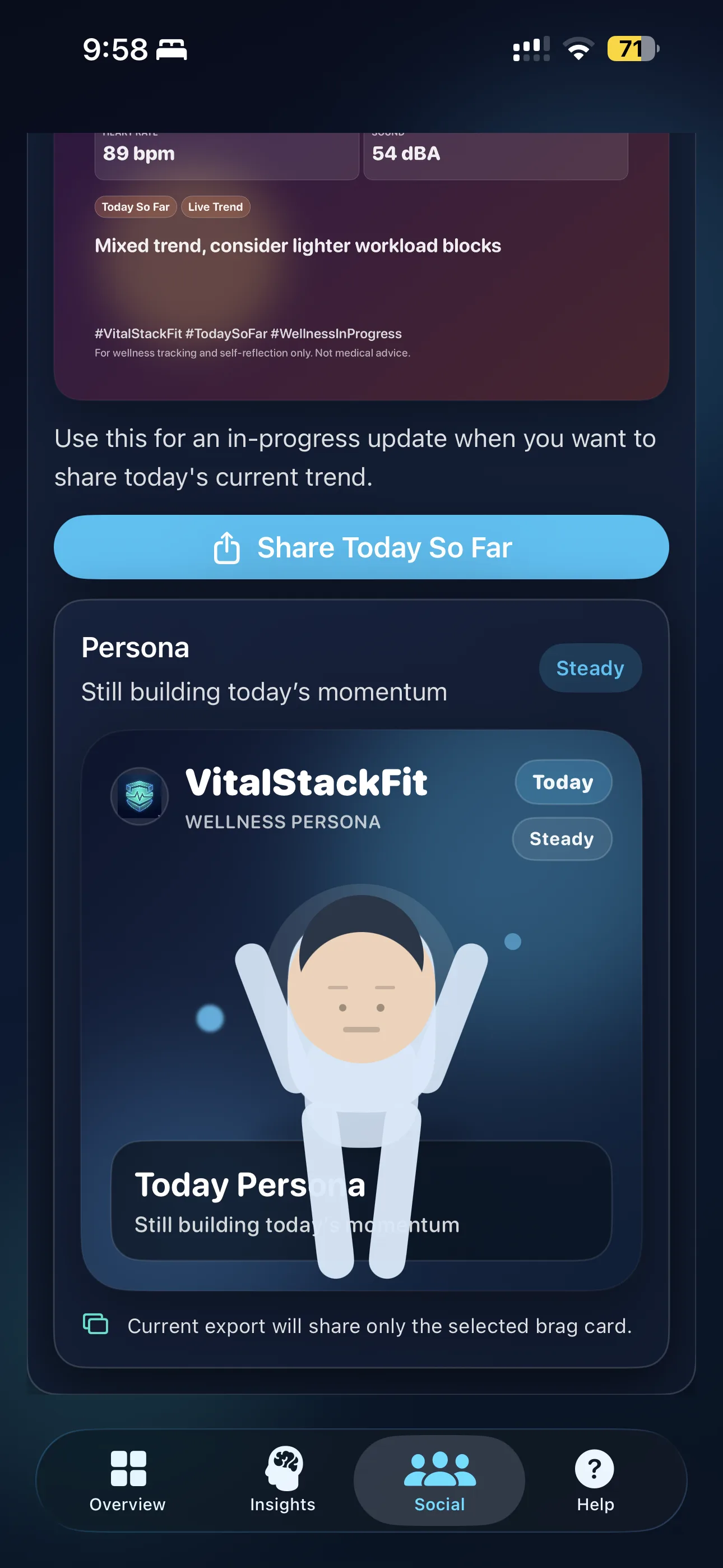
When Persona Sharing is enabled, your selected card can also be paired with a branded animated companion built for the same share story.
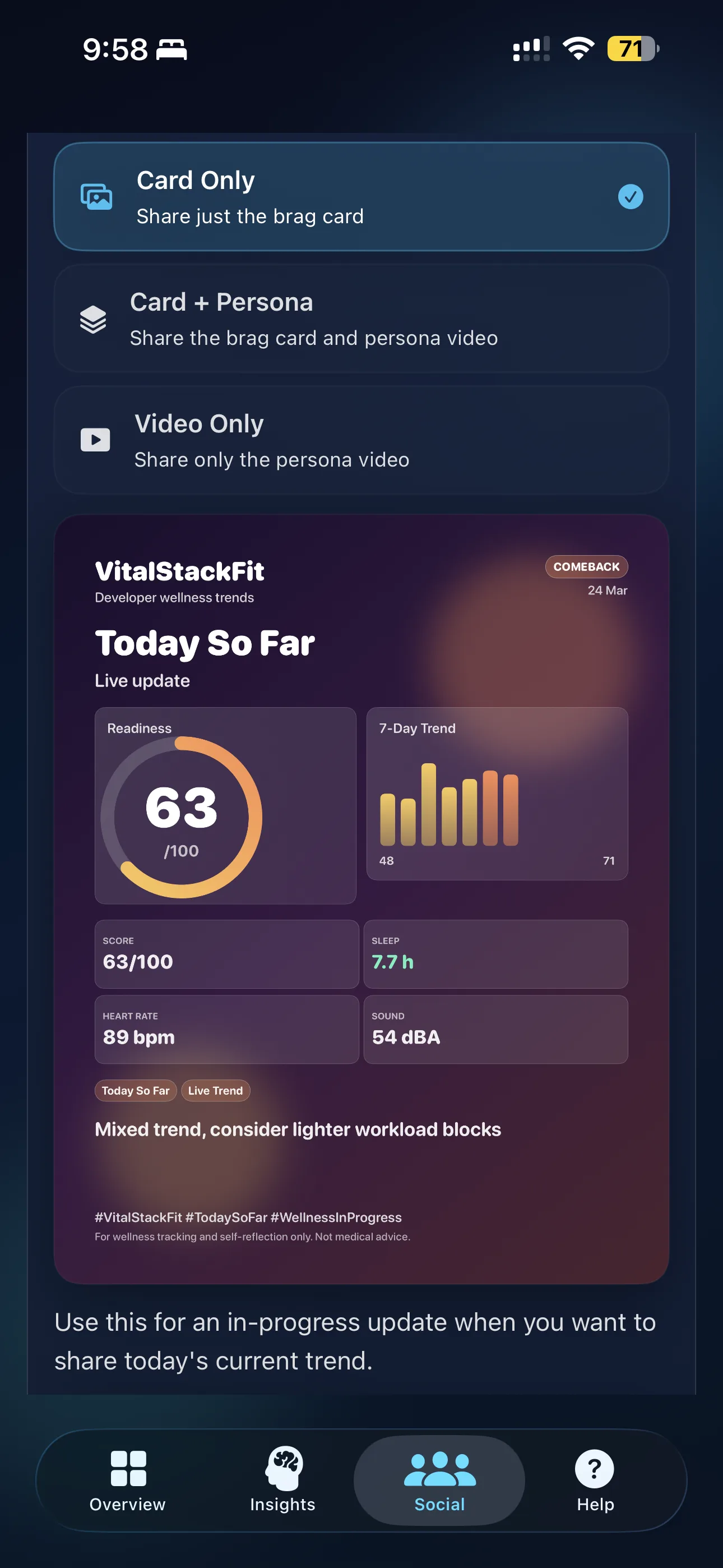
VitalStackFit automatically selects one of four themes:
Brag Cards prioritize meaningful outcomes in this order:
VitalStackFit Pro now includes a Persona companion for Social sharing. Persona turns your selected share mode into a polished animated visual that matches the same story your card is telling, while staying clearly informational and non-medical.
Persona exports can include:
Users can choose a Persona style inside Help. This changes how the Persona appears in the Social section and persona-enabled exports.
Persona is a visual storytelling layer for sharing progress. It does not change the app's scores, and it does not provide medical advice, diagnosis, or treatment.
Time of day with highest environmental sound trend in your selected range.
Time of day with lowest environmental sound trend in your selected range.
Time period where average heart rate trends higher than your day baseline.
Time period where average heart rate trends lower than your day baseline.
Approximate timing patterns that indicate when your days are calmer vs more active.
These are behavioral trend observations only.
They are not medical conclusions.
How your selected trend moved during the experiment period.
How reliable the current signal looks with available data.
How noticeable the pattern difference appears right now.
After running experiments, each one gets a recommendation badge based on your personal history:
Below current experiments, you can see past results with their badges and evidence summaries. The more experiments you complete, the smarter recommendations become.
Apple Intelligence is an optional layer in VitalStackFit that helps turn trend data into simpler, easier-to-read summaries. It is designed to help you understand what changed this week, what stands out today, and what to focus on next without changing the app's core experience.
Core scores, trend cards, and analytics still work without Apple Intelligence. The app remains fully usable even if these features are not available on your device.
Apple Intelligence helps translate your existing trend data into cleaner summaries and explanations. Think of it as a supportive reading layer that can make weekly changes easier to understand, not as a replacement for the app's regular insights.
VitalStackFit presents Apple Intelligence as a privacy-conscious summarization and explanation layer. Where Apple's supported on-device or private processing applies, the experience is designed to stay aligned with those platform protections. Availability and processing behavior depend on your Apple device, settings, and supported software version.
| Feature | Free | Pro |
|---|---|---|
| Core readiness and key score cards | Yes | Yes |
| Basic trend visibility | Yes | Yes |
| Daily check-in | Yes | Yes |
| Pattern intelligence basics | Yes | Yes |
| Weekly outcome report | No | Yes |
| Long-range analytics | No | Yes |
| Predictive alerts | No | Yes |
| Experiment engine with smart recommendations and history | No | Yes |
| Advanced biometric timing insights | No | Yes |
| Quick text share update | Yes | Yes |
| Apple Intelligence daily briefs, insight prioritization, and share caption suggestions on compatible devices | Yes | Yes |
| Advanced Apple Intelligence weekly narrative summaries on compatible devices | No | Yes |
| Brag Cards V3 premium visual exports | No | Yes |
| Persona Sharing animated exports and style options | No | Yes |
| Deep workout/respiratory/blood oxygen/steps trend cards | No | Yes |
Auto-renewing subscription. Cancel anytime in Apple ID settings.
Restore purchases is available from the paywall.
VitalStackFit uses optional local reminders (weekly trend reminder).
You can enable, disable, or change reminder timing in the app.
The app may also run a best-effort background refresh to update reminder text using on-device Health data before the reminder appears.
Your Health data permissions stay under your control.
VitalStackFit uses your approved Health data to show informational wellness trends.
VitalStackFit does not provide medical advice, diagnosis, or treatment.
If you have health concerns, consult a qualified healthcare professional.
They are optional Apple Intelligence-powered explanations that help turn your existing trend data into shorter daily briefs, weekly summaries, clearer experiment descriptions, and polished share copy.
They may be unavailable if your device does not support Apple Intelligence, your software version is not supported, the feature is not available in your region or language, or there is not enough recent data for a useful summary.
No. Your regular scores, trend cards, and analytics continue to work without AI and remain the core app experience.
No. Some Apple Intelligence features can appear on compatible devices without Pro, while some advanced weekly AI summaries are part of Pro.
Persona Sharing is a premium social feature that adds an animated branded companion to your selected VitalStackFit share mode.
No. Persona is decorative and reflects the same share context already shown in your selected card.
Depending on your selection, you can export the brag card only, the brag card with a Persona video, or the Persona video by itself.
Persona video is generated on-device at the time of export. VitalStackFit shows progress so users know when the video is being prepared.
Yes. While Persona video is being generated, it is best to keep the app open and avoid locking the screen until export finishes.
There is not enough recent data for a reliable trend view yet.
Scores reflect trend movement across multiple recent signals, not one single reading.
No. Apple Watch is optional, but it usually improves data depth and timing detail.
Open the paywall and tap Restore.
Confidence rises as trend consistency and sample quality improve.
A good first week means 5-7 days of Health data plus daily check-ins, then reviewing your weekly trend rather than single-day spikes.
Yes. Free users can share a quick text update, and Pro users can export Brag Cards V3 from the Social tab.
Only your latest self check-in for each day is stored. If you check in again the same day, it replaces the earlier one.
No. It is a wellness trends app for informational use only.
Contact support: [email protected]
Privacy Policy: https://vitalstack.fit/privacy
Terms of Service: https://vitalstack.fit/terms
EULA: https://www.apple.com/legal/internet-services/itunes/dev/stdeula